Editing the customizable system text enables you, as the Company Administrator, to define how key elements of the system appear to users. The list of editable items may vary based on your LMS's customizations. Examples of editable system text include:
All of these elements can be edited using the Maintain Custom Text screen. The text's appearance and culture can be customized using the Rich Text Editor.
LMS Company Administrator access and the Administrator's Console view are usually required to access this function. Your organization's LMS access and permissions may differ from this standard. Please contact your organization's Company Administrator if you have questions about your access to the LMS.
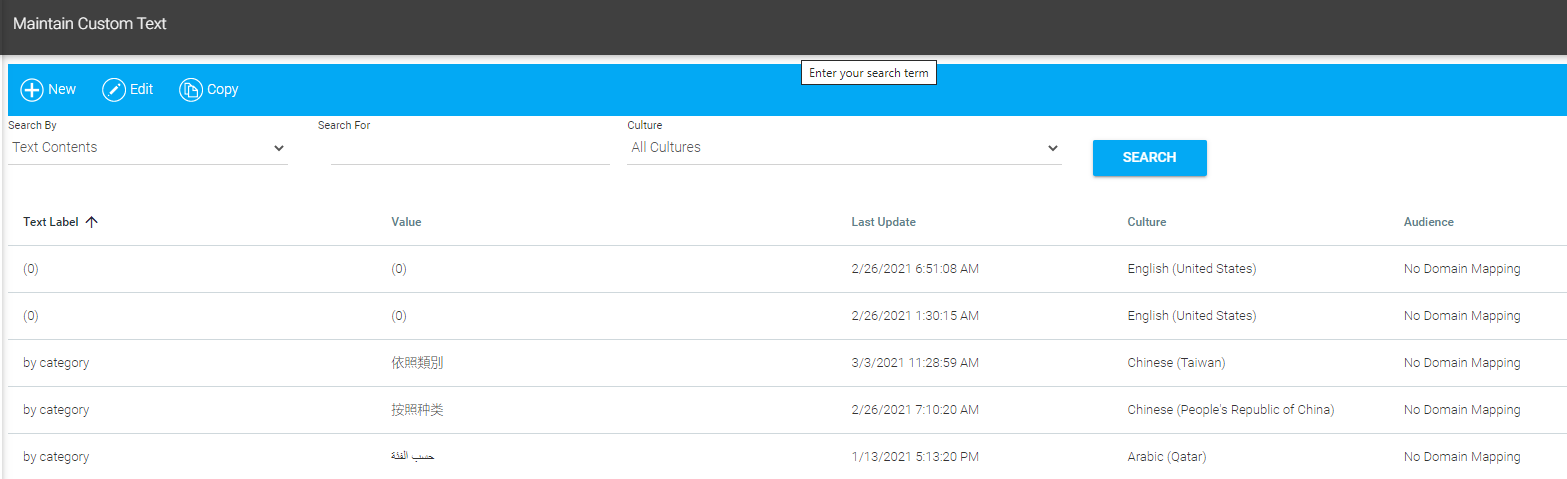
To edit customizable text, go to System > Maintain Custom Text in the Navigation Bar of the Administrator's Console. A list of editable text will open.
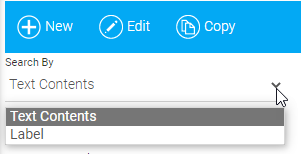
You can search this list by either the label of a text field or by the content of that field.
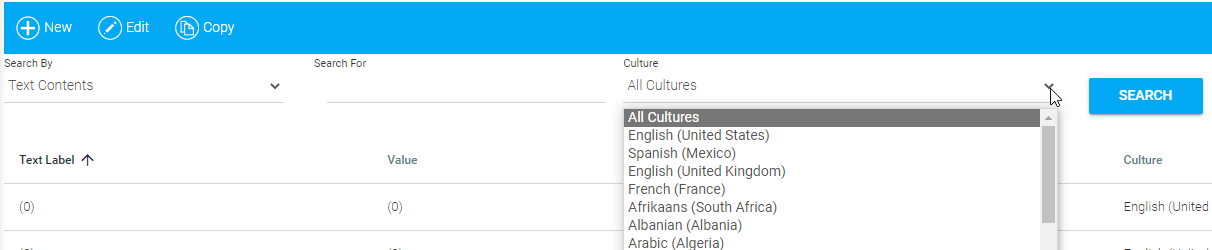
If your system is globalized, you can select a Culture from the drop-down on the initial search screen to look for on-screen text in a specific language.
Select the text element you wish to edit and and click the Edit button in the toolbar.
The on-screen element will open in the Rich Text Editor. Make changes as needed. Select the Audience tab to manage which users or user groups will (or will not) be able to see this customized text. See The Audience Tab for more information on assigning audiences.
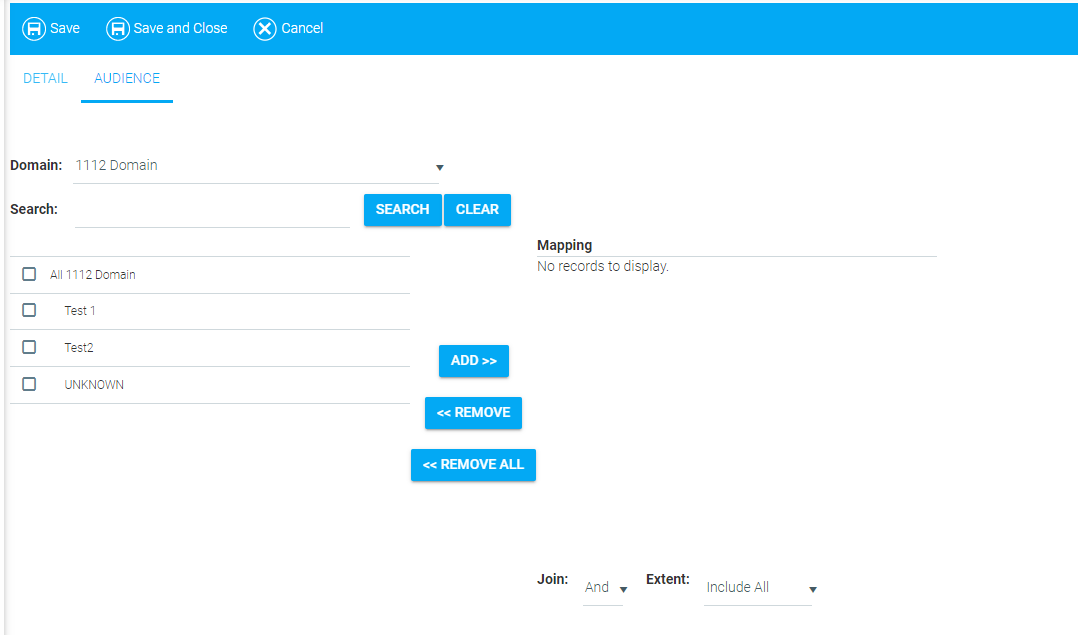
Click Save and Close.